WordleFriend User’s Guide
Wordlefriend is designed to help you be more successful with Wordle. Use it to lower the number of guesses to solve your Wordle puzzles.
Everything you need to get started using Wordlefriend is outlined in the Basic Process section that immediately follows this introduction. It’s a 2-minute read and you’re off to the races!
If you just want to read the basics, all you need is the Basic Process. Later, as you get more advanced, you can read through more of this page for more advanced tips on how to use the information available in Wordlefriend to further optimize your experience.
Basic Process
Follow this basic process to lower the average number of guesses it will take you to solve your Wordle. That’s what we’re all about! Here are the steps:
- Enter the letters you guessed in Wordle into Wordlefriend.com
- Click the letters to match colors shown by Wordle
- Double check your words and colors match the Wordle results. It’s critical that the guessed word and the colors of each letter are identical. Otherwise, you will get the wrong suggestions from Wordlefriend.
- Hit submit
- Read the suggested guesses
- Pick one and enter it into Wordle (see more about Suggested Guesses below)
- Jump to step 1.
- Repeat this process until the puzzle is solved
Explaining Suggested Guesses
One of the key components of Wordlefriend is that it suggests the top options for your next guess. These suggestions are calculated to maximize your chances of solving the Wordle quickly. For reference, consider the following screenshot from Wordlefriend.com:
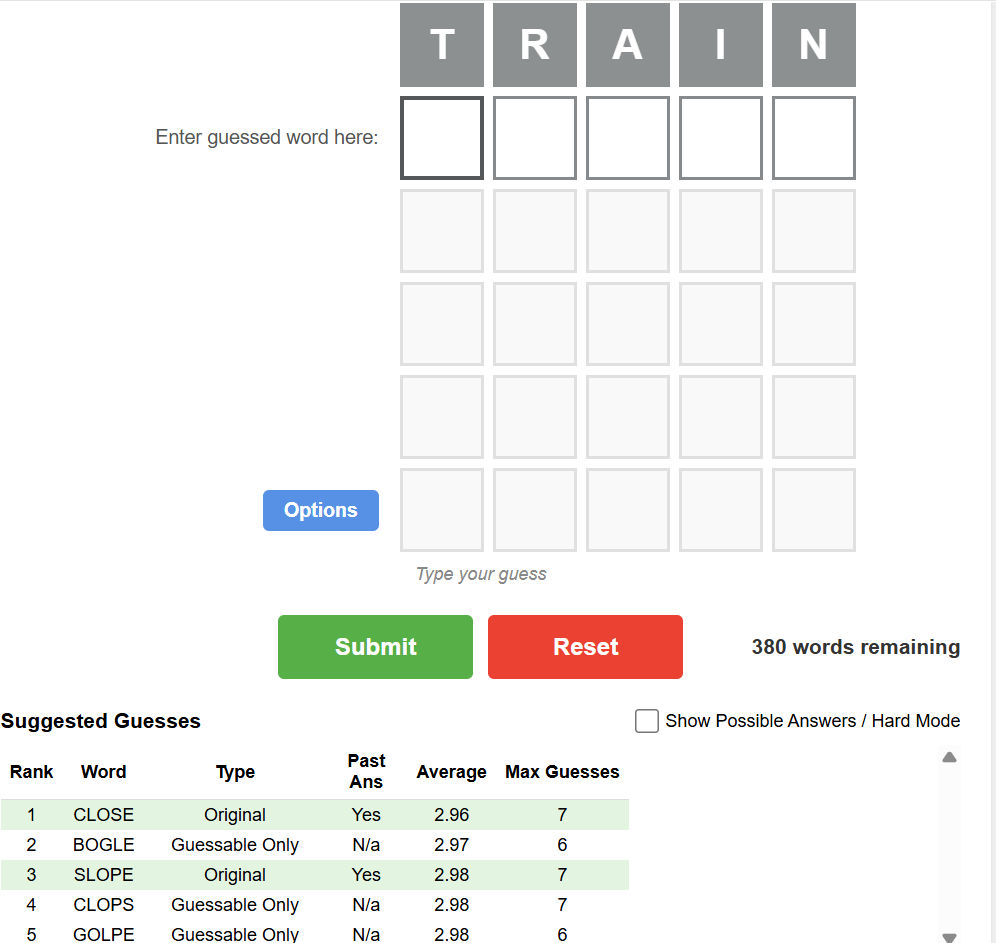
The image shows a sample of the start of a Wordlefriend session from September 13, 2026. Below the Submit and Reset buttons you can see the text Suggested Guesses with a table of data below that. The table of information provided contains the following:
Items Highlighted in Green – These are words that are possible answers to today’s puzzle. Words not highlighted in green are NOT possible answers to today’s puzzle.
Rank – The words in the table are presented in the rank order which Wordlefriend recommends them. Note that this is configured by default to be prioritized based on the Average number of guesses that will be required to solve the puzzle if you pick the suggested word for your next guess.
Word – Contains the suggested guess word.
Type – This classifies words into three major groups: (1) Original words were one of the 2,315 possible answers that were part of Wordle when it was originally developed; (2) Unoriginal in Dict words are words that are possible answers, but they were added to the list of possible answers by the New York Times after they acquired Wordle; (3) Guessable Only words are words that you are permitted to use as guesses, but they are not possible answers to the puzzle.
Past Ans – This tells us if the word has ever been used as the answer for a Wordle puzzle in the past. Words that are Guessable Only will show N/a in this column. Other words will show either Yes or No. Words that are a possible answer to today’s puzzle (the ones highlighted in green) and that have never before been used as an answer to a Wordle puzzle are more likely to be an answer than words that have previously been used as an answer. This factor is NOT considered in deciding the rank order of the Suggested Guesses, but you can leverage this information in deciding what word to use as your next guess.
Average – This is the average number of guesses it will take you to solve today’s puzzle if you pick the word in this row.
Max Guesses – This is the worst-case total of the number of guesses it will take to solve today’s puzzle if you use the word in this row as your next guess. Note that after your first guess that this number can sometimes be large (such as 6 or 7 as shown in our screen shot). However, don’t worry too much about this column until you have made at least two guesses.
What Does the Show Possible Answers / Hard Mode checkbox do?
This is an option that you can use to see all the remaining possible answers at any time during the puzzle. This list is structured in identical fashion as the Suggested Guesses table, with the primary difference being that it doesn’t include any words that aren’t possible answers to today’s puzzle. You can see where this option is in the UI in the following image:
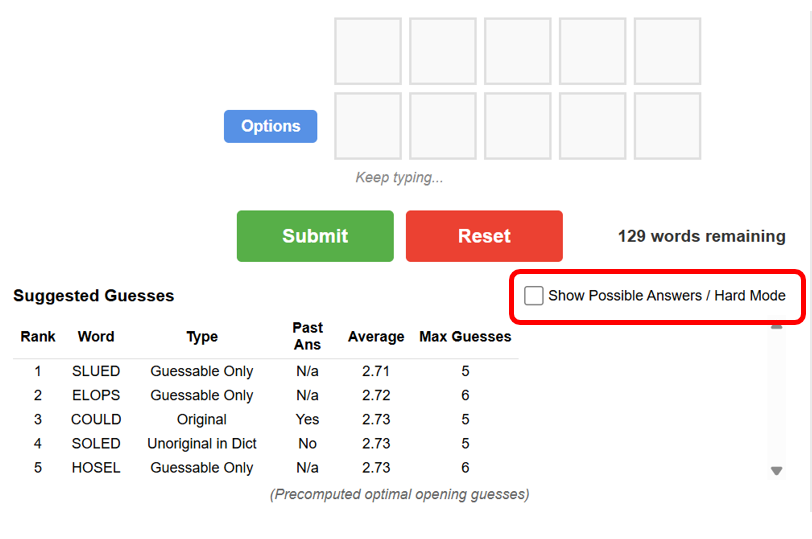
If you prefer to play Wordle in Hard Mode then this is the key table you should use when playing Wordle. If you don’t know what Hard Mode is, scroll down below for a definition of how that works.
If you’re playing Wordle the normal way, use the Possible Answers table if you want to see a list of all the remaining potential answers.
What is Hard Mode and Why Use it?
Hard Mode is a way of playing Wordle that is more constrained. Specifically, you must use any revealed hints in all your remaining guesses. Here is what that means:
- If a letter turns green, you must use that exact letter in that exact same position for every remaining guess.
- If a letter turns yellow, you must include that letter somewhere in your subsequent guesses (though it can also be placed in the same yellow spot again if you wish).
- Hard mode does not stop you from reusing eliminated gray letters, even though it is usually a bad strategy
Why Use Hard Mode?
Some players choose Hard Mode just to make Wordle more challenging.
Should I Use the Show Possible Answers screen if I’m not Using Hard Mode?
Most of the time there is no need to use it unless you are playing in Hard Mode.
However, occasionally you may be curious to take a closer look at all the remaining possible answers. This might be of interest when there is a small number of remaining possible answers (e.g. 3 to 6) and you want to see them all at once.